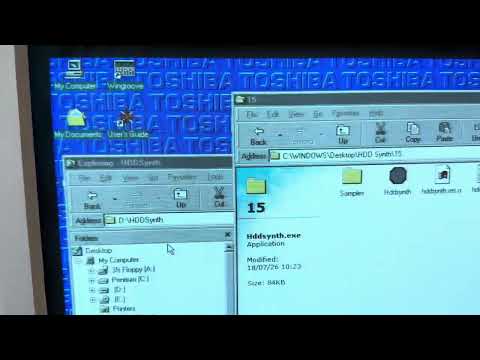
BTW I also tested the latest version of the software on:
- a normal (x86_64) Windows 11 laptop: access sounds didn't work, otherwise OK
- Windows Vista Ultimate 32-bit (VM on macOS using UTM.app): access sounds didn't work, otherwise OK
- Windows XP SP3 (VM on macOS using UTM.app): OK
- Windows 98 SE (VM on macOS using UTM.app): OK
PS. If you want to test on macOS with Windows VMs, here's how I made my VMs on macOS 26 (ARM64 version) using UTM
(click to reveal details)
https://github.com/utmapp/UTM (I used the latest non-beta version)
Windows XP (32-bit) VM:
UTM.app -> File / New... -> Emulate -> Windows -> Intel i440FX (i386) -> Continue -> CD/DVD Image -> Browse... (select your 32-bit XP .ISO file) -> 8 GiB HDD maybe? -> Open VM settings -> Sound -> Emulated Audio Card -> AC97 -> launch the VM, install Windows normally
Windows 98 SE VM:
basically same as XP above but don't change "Emulated Audio Card" (just use the default Sound Blaster 16), and also a little bit more fiddling with large drive support and whatnot, relatively painless still, had to "Capture input devices" from the toolbar though (control+option to uncapture)
Windows Vista (32-bit) VM:
UTM.app -> File / New... -> Emulate -> Windows -> Intel ICH9 (x86_64) -> unselect "Install Windows 10 or higher" -> Continue -> Browse... (select your 32-bit Vista .ISO file) -> at least 32 GiB HDD maybe? -> Open VM settings -> Input -> USB 2.0 -> QEMU -> Force PS/2 Controller -> Sound -> Emulated Audio Card -> AC97 -> launch the VM, install (mouse support a bit wonky at first, had to click "Capture input devices" from the toolbar (control+option to uncapture) or just use the keyboard to install, using tab, enter, space, etc)
PS2. ...and this is quite possibly the stupidest possible way to transfer files inside a VM:
Disk Utility.app -> File -> New Image -> Image from Folder... -> select the folder (e.g. HDDSynth-Win32-v0.x.x) -> Image Format -> DVD/CD Master -> name it e.g. diskname.dvdr (becomes diskname.dvdr.cdr?) -> open Terminal.app -> hdiutil makehybrid -iso -joliet -o diskname.iso diskname.dvdr.cdr -> select the VM from the left panel of UTM -> CD/DVD from the right -> Browse... select diskname.iso -> should appear as a CD-ROM drive inside the VM